The open-source managed agents platform. Turn coding agents into real teammates — assign tasks, track progress, compound skills.


Multica
Your next 10 hires won't be human.
The open-source managed agents platform.
Turn coding agents into real teammates — assign tasks, track progress, compound skills.



Website · Cloud · X · Self-Hosting · Contributing
English | 简体中文
What is Multica?
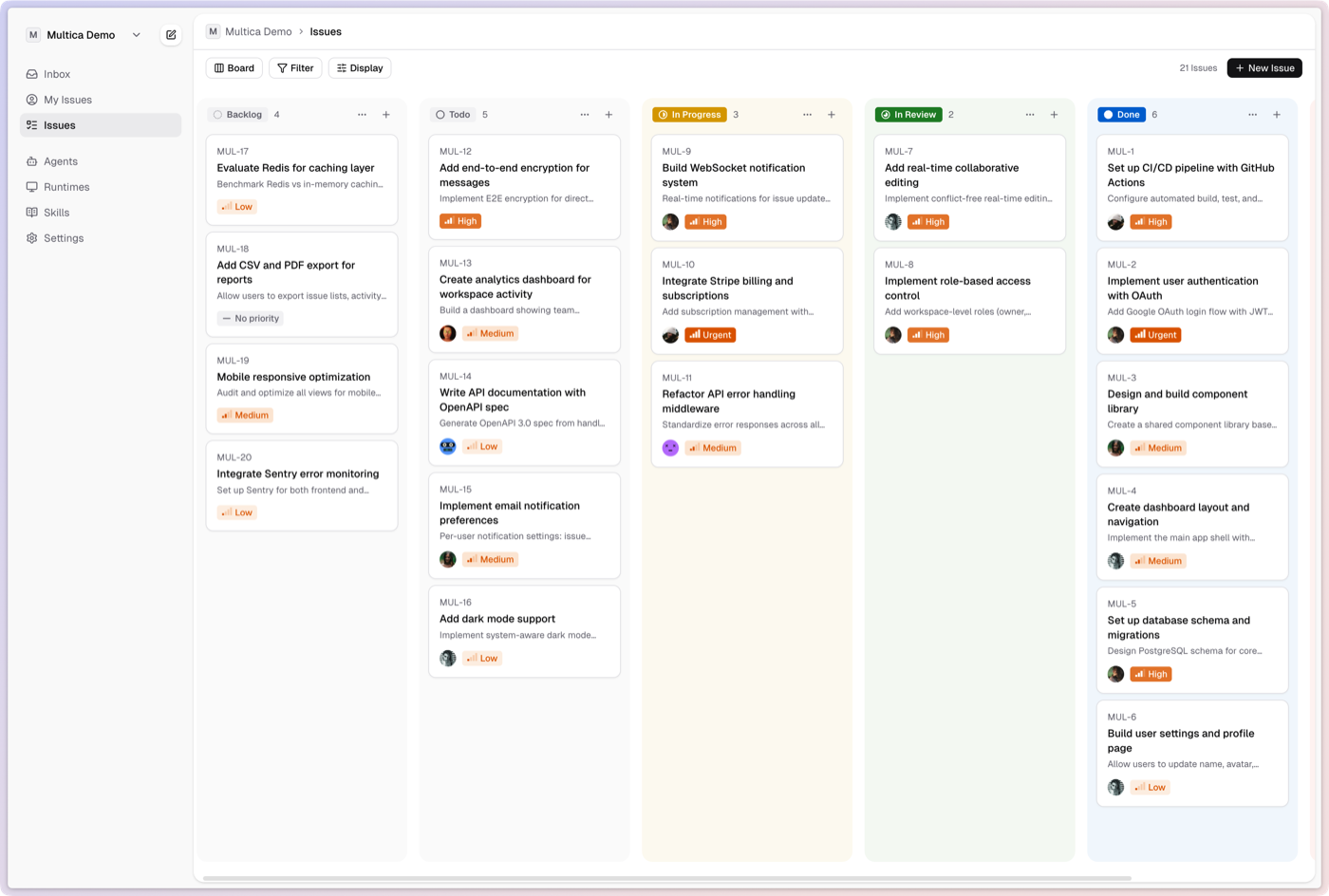
Multica turns coding agents into real teammates. Assign issues to an agent like you'd assign to a colleague — they'll pick up the work, write code, report blockers, and update statuses autonomously.
No more copy-pasting prompts. No more babysitting runs. Your agents show up on the board, participate in conversations, and compound reusable skills over time. Think of it as open-source infrastructure for managed agents — vendor-neutral, self-hosted, and designed for human + AI teams. Works with Claude Code, Codex, OpenClaw, and OpenCode.
Features
Multica manages the full agent lifecycle: from task assignment to execution monitoring to skill reuse.
- Agents as Teammates — assign to an agent like you'd assign to a colleague. They have profiles, show up on the board, post comments, create issues, and report blockers proactively.
- Autonomous Execution — set it and forget it. Full task lifecycle management (enqueue, claim, start, complete/fail) with real-time progress streaming via WebSocket.
- Reusable Skills — every solution becomes a reusable skill for the whole team. Deployments, migrations, code reviews — skills compound your team's capabilities over time.
- Unified Runtimes — one dashboard for all your compute. Local daemons and cloud runtimes, auto-detection of available CLIs, real-time monitoring.
- Multi-Workspace — organize work across teams with workspace-level isolation. Each workspace has its own agents, issues, and settings.
Getting Started
Multica Cloud
The fastest way to get started — no setup required: multica.ai
Self-Host with Docker
Prerequisites: Docker and Docker Compose.
git clone https://github.com/multica-ai/multica.git
cd multica
cp .env.example .env
# Edit .env — change JWT_SECRET at minimum
docker compose -f docker-compose.selfhost.yml up -d
This builds and starts PostgreSQL, the backend (with auto-migration), and the frontend. Open http://localhost:3000 when ready.
See the Self-Hosting Guide for full configuration, reverse proxy setup, and CLI/daemon instructions.
CLI
The multica CLI connects your local machine to Multica — authenticate, manage workspaces, and run the agent daemon.
Option A — paste this to your coding agent (Claude Code, Codex, OpenClaw, OpenCode, etc.):
Fetch https://github.com/multica-ai/multica/blob/main/CLI_INSTALL.md and follow the instructions to install Multica CLI, log in, and start the daemon on this machine.
Option B — install manually:
# Install
brew tap multica-ai/tap
brew install multica

# Authenticate and start
multica login
multica daemon start
The daemon auto-detects available agent CLIs (claude, codex, openclaw, opencode) on your PATH. When an agent is assigned a task, the daemon creates an isolated environment, runs the agent, and reports results back.
See the CLI and Daemon Guide for the full command reference, daemon configuration, and advanced usage.
Quickstart
Once you have the CLI installed (or signed up for Multica Cloud), follow these steps to assign your first task to an agent:
1. Log in and start the daemon
multica login           # Authenticate with your Multica account
multica daemon start    # Start the local agent runtime
The daemon runs in the background and keeps your machine connected to Multica. It auto-detects agent CLIs (claude, codex, openclaw, opencode) available on your PATH.
2. Verify your runtime
Open your workspace in the Multica web app. Navigate to Settings → Runtimes — you should see your machine listed as an active Runtime.
What is a Runtime? A Runtime is a compute environment that can execute agent tasks. It can be your local machine (via the daemon) or a cloud instance. Each runtime reports which agent CLIs are available, so Multica knows where to route work.
3. Create an agent
Go to Settings → Agents and click New Agent. Pick the runtime you just connected and choose a provider (Claude Code, Codex, OpenClaw, or OpenCode). Give your agent a name — this is how it will appear on the board, in comments, and in assignments.
4. Assign your first task
Create an issue from the board (or via multica issue create), then assign it to your new agent. The agent will automatically pick up the task, execute it on your runtime, and report progress — just like a human teammate.
That's it! Your agent is now part of the team. 🎉
Architecture
┌──────────────┐     ┌──────────────┐     ┌──────────────────┐
│   Next.js    │────>│  Go Backend  │────>│   PostgreSQL     │
│   Frontend   │<────│  (Chi + WS)  │<────│   (pgvector)     │
└──────────────┘     └──────┬───────┘     └──────────────────┘
                            │
                     ┌──────┴───────┐
                     │ Agent Daemon │  (runs on your machine)
                     │Claude/Codex/ │
                     │OpenClaw/Code │
                     └──────────────┘
| Layer | Stack |
|---|---|
| Frontend | Next.js 16 (App Router) |
| Backend | Go (Chi router, sqlc, gorilla/websocket) |
| Database | PostgreSQL 17 with pgvector |
| Agent Runtime | Local daemon executing Claude Code, Codex, OpenClaw, or OpenCode |
Development
For contributors working on the Multica codebase, see the Contributing Guide.
Prerequisites: Node.js v20+, pnpm v10.28+, Go v1.26+, Docker
make dev
make dev auto-detects your environment (main checkout or worktree), creates the env file, installs dependencies, sets up the database, runs migrations, and starts all services.
See CONTRIBUTING.md for the full development workflow, worktree support, testing, and troubleshooting.
Command-line JSON processor
jq
jq is a lightweight and flexible command-line JSON processor akin to sed,awk,grep, and friends for JSON data. It's written in portable C and has zero runtime dependencies, allowing you to easily slice, filter, map, and transform structured data.
Documentation
- Official Documentation: jqlang.org
- Try jq Online: play.jqlang.org
Installation
Prebuilt Binaries
Download the latest releases from the GitHub release page.
Docker Image
Pull the jq image to start quickly with Docker.
Run with Docker
Example: Extracting the version from a package.json file
docker run --rm -i ghcr.io/jqlang/jq:latest < package.json '.version'
Example: Extracting the version from a package.json file with a mounted volume
docker run --rm -i -v "$PWD:$PWD" -w "$PWD" ghcr.io/jqlang/jq:latest '.version' package.json
Building from source
Dependencies
- libtool
- make
- automake
- autoconf
Instructions
git submodule update --init    # if building from git to get oniguruma
autoreconf -i                  # if building from git
./configure --with-oniguruma=builtin
make clean                     # if upgrading from a version previously built from source
make -j8
make check
sudo make install
Build a statically linked version:
make LDFLAGS=-all-static
If you're not using the latest git version but instead building a released tarball (available on the release page), skip the autoreconf step, and flex or bison won't be needed.
Cross-Compilation
For details on cross-compilation, check out the GitHub Actions file and the cross-compilation wiki page.
Community & Support
- Questions & Help: Stack Overflow (jq tag)
- Chat & Community: Join us on Discord
- Wiki & Advanced Topics: Explore the Wiki
License
jq is released under the MIT License. jq's documentation is licensed under the Creative Commons CC BY 3.0. jq uses parts of the open source C library "decNumber", which is distributed under ICU License
Python tool for converting files and office documents to Markdown.
MarkItDown



Tip
MarkItDown now offers an MCP (Model Context Protocol) server for integration with LLM applications like Claude Desktop. See markitdown-mcp for more information.
Important
Breaking changes between 0.0.1 to 0.1.0:
- Dependencies are now organized into optional feature-groups (further details below). Use
pip install 'markitdown[all]'to have backward-compatible behavior. - convert_stream() now requires a binary file-like object (e.g., a file opened in binary mode, or an io.BytesIO object). This is a breaking change from the previous version, where it previously also accepted text file-like objects, like io.StringIO.
- The DocumentConverter class interface has changed to read from file-like streams rather than file paths. No temporary files are created anymore. If you are the maintainer of a plugin, or custom DocumentConverter, you likely need to update your code. Otherwise, if only using the MarkItDown class or CLI (as in these examples), you should not need to change anything.
MarkItDown is a lightweight Python utility for converting various files to Markdown for use with LLMs and related text analysis pipelines. To this end, it is most comparable to textract, but with a focus on preserving important document structure and content as Markdown (including: headings, lists, tables, links, etc.) While the output is often reasonably presentable and human-friendly, it is meant to be consumed by text analysis tools -- and may not be the best option for high-fidelity document conversions for human consumption.
MarkItDown currently supports the conversion from:
- PowerPoint
- Word
- Excel
- Images (EXIF metadata and OCR)
- Audio (EXIF metadata and speech transcription)
- HTML
- Text-based formats (CSV, JSON, XML)
- ZIP files (iterates over contents)
- Youtube URLs
- EPubs
- ... and more!
Why Markdown?
Markdown is extremely close to plain text, with minimal markup or formatting, but still provides a way to represent important document structure. Mainstream LLMs, such as OpenAI's GPT-4o, natively "speak" Markdown, and often incorporate Markdown into their responses unprompted. This suggests that they have been trained on vast amounts of Markdown-formatted text, and understand it well. As a side benefit, Markdown conventions are also highly token-efficient.
Prerequisites
MarkItDown requires Python 3.10 or higher. It is recommended to use a virtual environment to avoid dependency conflicts.
With the standard Python installation, you can create and activate a virtual environment using the following commands:
python -m venv .venv
source .venv/bin/activate
If using uv, you can create a virtual environment with:
uv venv --python=3.12 .venv
source .venv/bin/activate
# NOTE: Be sure to use 'uv pip install' rather than just 'pip install' to install packages in this virtual environment
If you are using Anaconda, you can create a virtual environment with:
conda create -n markitdown python=3.12
conda activate markitdown
Installation
To install MarkItDown, use pip: pip install 'markitdown[all]'. Alternatively, you can install it from the source:
git clone git@github.com:microsoft/markitdown.git
cd markitdown
pip install -e 'packages/markitdown[all]'
Usage
Command-Line
markitdown path-to-file.pdf > document.md
Or use -o to specify the output file:
markitdown path-to-file.pdf -o document.md
You can also pipe content:
cat path-to-file.pdf | markitdown
Optional Dependencies
MarkItDown has optional dependencies for activating various file formats. Earlier in this document, we installed all optional dependencies with the [all] option. However, you can also install them individually for more control. For example:
pip install 'markitdown[pdf, docx, pptx]'
will install only the dependencies for PDF, DOCX, and PPTX files.
At the moment, the following optional dependencies are available:
[all]Installs all optional dependencies[pptx]Installs dependencies for PowerPoint files[docx]Installs dependencies for Word files[xlsx]Installs dependencies for Excel files[xls]Installs dependencies for older Excel files[pdf]Installs dependencies for PDF files[outlook]Installs dependencies for Outlook messages[az-doc-intel]Installs dependencies for Azure Document Intelligence[audio-transcription]Installs dependencies for audio transcription of wav and mp3 files[youtube-transcription]Installs dependencies for fetching YouTube video transcription
Plugins
MarkItDown also supports 3rd-party plugins. Plugins are disabled by default. To list installed plugins:
markitdown --list-plugins
To enable plugins use:
markitdown --use-plugins path-to-file.pdf
To find available plugins, search GitHub for the hashtag #markitdown-plugin. To develop a plugin, see packages/markitdown-sample-plugin.
markitdown-ocr Plugin
The markitdown-ocr plugin adds OCR support to PDF, DOCX, PPTX, and XLSX converters, extracting text from embedded images using LLM Vision — the same llm_client / llm_model pattern that MarkItDown already uses for image descriptions. No new ML libraries or binary dependencies required.
Installation:
pip install markitdown-ocr
pip install openai  # or any OpenAI-compatible client
Usage:
Pass the same llm_client and llm_model you would use for image descriptions:
from markitdown import MarkItDown
from openai import OpenAI

md = MarkItDown(
    enable_plugins=True,
    llm_client=OpenAI(),
    llm_model="gpt-4o",
)
result = md.convert("document_with_images.pdf")
print(result.text_content)
If no llm_client is provided the plugin still loads, but OCR is silently skipped and the standard built-in converter is used instead.
See packages/markitdown-ocr/README.md for detailed documentation.
Azure Document Intelligence
To use Microsoft Document Intelligence for conversion:
markitdown path-to-file.pdf -o document.md -d -e "<document_intelligence_endpoint>"
More information about how to set up an Azure Document Intelligence Resource can be found here
Python API
Basic usage in Python:
from markitdown import MarkItDown

md = MarkItDown(enable_plugins=False) # Set to True to enable plugins
result = md.convert("test.xlsx")
print(result.text_content)
Document Intelligence conversion in Python:
from markitdown import MarkItDown

md = MarkItDown(docintel_endpoint="<document_intelligence_endpoint>")
result = md.convert("test.pdf")
print(result.text_content)
To use Large Language Models for image descriptions (currently only for pptx and image files), provide llm_client and llm_model:
from markitdown import MarkItDown
from openai import OpenAI

client = OpenAI()
md = MarkItDown(llm_client=client, llm_model="gpt-4o", llm_prompt="optional custom prompt")
result = md.convert("example.jpg")
print(result.text_content)
Docker
docker build -t markitdown:latest .
docker run --rm -i markitdown:latest < ~/your-file.pdf > output.md
Contributing
This project welcomes contributions and suggestions. Most contributions require you to agree to a Contributor License Agreement (CLA) declaring that you have the right to, and actually do, grant us the rights to use your contribution. For details, visit https://cla.opensource.microsoft.com.
When you submit a pull request, a CLA bot will automatically determine whether you need to provide a CLA and decorate the PR appropriately (e.g., status check, comment). Simply follow the instructions provided by the bot. You will only need to do this once across all repos using our CLA.
This project has adopted the Microsoft Open Source Code of Conduct. For more information see the Code of Conduct FAQ or contact opencode@microsoft.com with any additional questions or comments.
How to Contribute
You can help by looking at issues or helping review PRs. Any issue or PR is welcome, but we have also marked some as 'open for contribution' and 'open for reviewing' to help facilitate community contributions. These are of course just suggestions and you are welcome to contribute in any way you like.
| All | Especially Needs Help from Community | |
|---|---|---|
| Issues | All Issues | Issues open for contribution |
| PRs | All PRs | PRs open for reviewing |
Running Tests and Checks
-
Navigate to the MarkItDown package:
cd packages/markitdown -
Install
hatchin your environment and run tests:pip install hatch # Other ways of installing hatch: https://hatch.pypa.io/dev/install/ hatch shell hatch test(Alternative) Use the Devcontainer which has all the dependencies installed:
# Reopen the project in Devcontainer and run: hatch test -
Run pre-commit checks before submitting a PR:
pre-commit run --all-files
Contributing 3rd-party Plugins
You can also contribute by creating and sharing 3rd party plugins. See packages/markitdown-sample-plugin for more details.
Trademarks
This project may contain trademarks or logos for projects, products, or services. Authorized use of Microsoft trademarks or logos is subject to and must follow Microsoft's Trademark & Brand Guidelines. Use of Microsoft trademarks or logos in modified versions of this project must not cause confusion or imply Microsoft sponsorship. Any use of third-party trademarks or logos are subject to those third-party's policies.
Open-source AI coworker, with memory




Rowboat
Open-source AI coworker that turns work into a knowledge graph and acts on it
Rowboat connects to your email and meeting notes, builds a long-lived knowledge graph, and uses that context to help you get work done - privately, on your machine.
You can do things like:
Build me a deck about our next quarter roadmap→ generates a PDF using context from your knowledge graphPrep me for my meeting with Alex→ pulls past decisions, open questions, and relevant threads into a crisp brief (or a voice note)- Track a person, company or topic through live notes
- Visualize, edit, and update your knowledge graph anytime (it’s just Markdown)
- Record voice memos that automatically capture and update key takeaways in the graph
Download latest for Mac/Windows/Linux: Download
⭐ If you find Rowboat useful, please star the repo. It helps more people find it.
Demo
Installation
Download latest for Mac/Windows/Linux: Download
All release files: https://github.com/rowboatlabs/rowboat/releases/latest
Google setup
To connect Google services (Gmail, Calendar, and Drive), follow Google setup.
Voice input
To enable voice input and voice notes (optional), add a Deepgram API key in ~/.rowboat/config/deepgram.json
Voice output
To enable voice output (optional), add an ElevenLabs API key in ~/.rowboat/config/elevenlabs.json
Web search
To use Exa research search (optional), add the Exa API key in ~/.rowboat/config/exa-search.json
External tools
To enable external tools (optional), you can add any MCP server or use Composio tools by adding an API key in ~/.rowboat/config/composio.json
All API key files use the same format:
{
  "apiKey": "<key>"
}
What it does
Rowboat is a local-first AI coworker that can:
- Remember the important context you don’t want to re-explain (people, projects, decisions, commitments)
- Understand what’s relevant right now (before a meeting, while replying to an email, when writing a doc)
- Help you act by drafting, summarizing, planning, and producing real artifacts (briefs, emails, docs, PDF slides)
Under the hood, Rowboat maintains an Obsidian-compatible vault of plain Markdown notes with backlinks — a transparent “working memory” you can inspect and edit.
Integrations
Rowboat builds memory from the work you already do, including:
- Gmail (email)
- Google Calendar
- Rowboat meeting notes or Fireflies
It also contains a library of product integrations through Composio.dev
How it’s different
Most AI tools reconstruct context on demand by searching transcripts or documents.
Rowboat maintains long-lived knowledge instead:
- context accumulates over time
- relationships are explicit and inspectable
- notes are editable by you, not hidden inside a model
- everything lives on your machine as plain Markdown
The result is memory that compounds, rather than retrieval that starts cold every time.
What you can do with it
- Meeting prep from prior decisions, threads, and open questions
- Email drafting grounded in history and commitments
- Docs & decks generated from your ongoing context (including PDF slides)
- Follow-ups: capture decisions, action items, and owners so nothing gets dropped
- On-your-machine help: create files, summarize into notes, and run workflows using local tools (with explicit, reviewable actions)
Live notes
Live notes are notes that stay updated automatically. You can create one by typing '@rowboat' on a note.
- Track a competitor or market topic across X, Reddit, and the news
- Monitor a person, project, or deal across web or your communications
- Keep a running summary of any subject you care about
Everything is written back into your local Markdown vault. You control what runs and when.
Bring your own model
Rowboat works with the model setup you prefer:
- Local models via Ollama or LM Studio
- Hosted models (bring your own API key/provider)
- Swap models anytime — your data stays in your local Markdown vault
Extend Rowboat with tools (MCP)
Rowboat can connect to external tools and services via Model Context Protocol (MCP). That means you can plug in (for example) search, databases, CRMs, support tools, and automations - or your own internal tools.
Examples: Exa (web search), Twitter/X, ElevenLabs (voice), Slack, Linear/Jira, GitHub, and more.
Local-first by design
- All data is stored locally as plain Markdown
- No proprietary formats or hosted lock-in
- You can inspect, edit, back up, or delete everything at any time